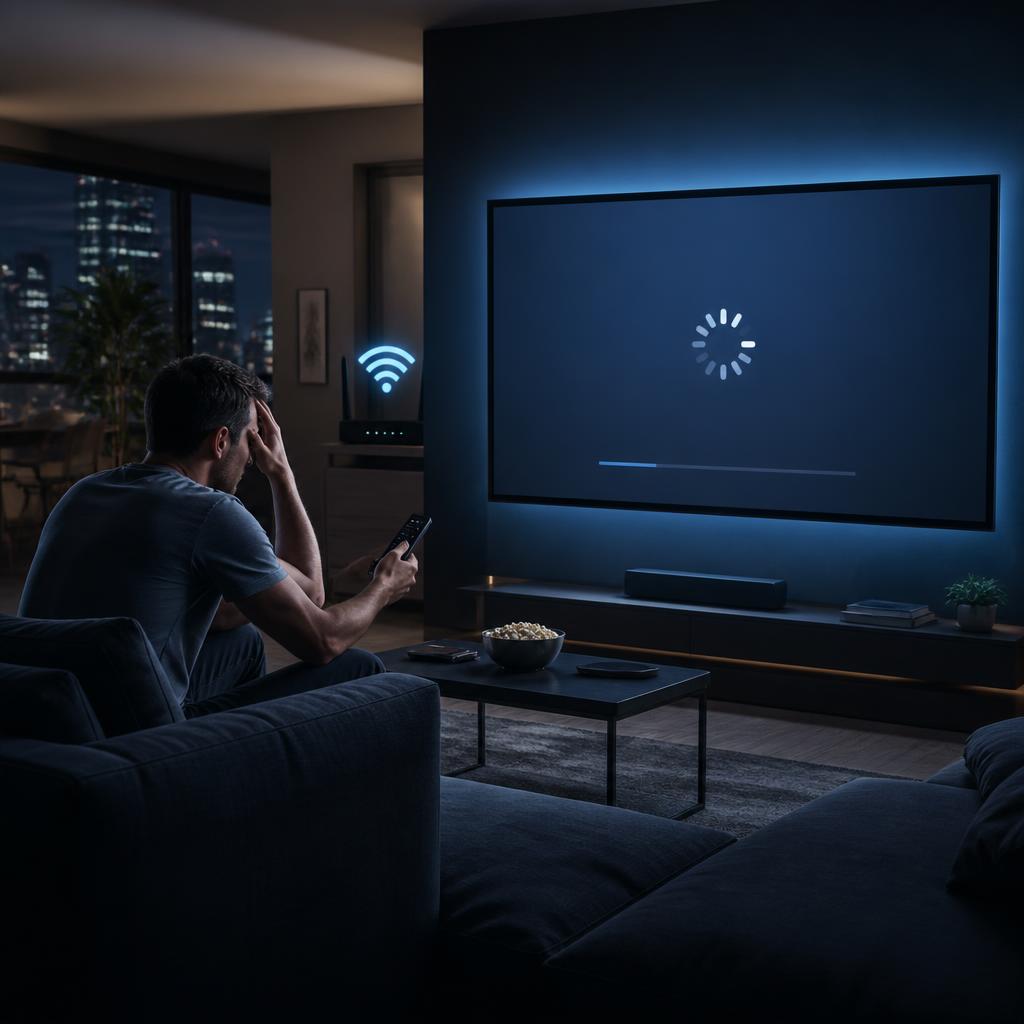
Why Is My IPTV Buffering? (And How to Fix It Fast)
You're watching the final minutes of a Champions League match. The score is tied. The tension is unbearable. And then — your screen freezes.
IPTV buffering is the #1 complaint among IPTV users worldwide. The good news? In 95% of cases, it's completely fixable.
In this complete guide, we'll walk you through every possible cause of IPTV buffering and the exact steps to eliminate it — whether you're using a Firestick, Smart TV, Android box, or any other device.
Understanding Why IPTV Buffers
Before fixing the problem, it's important to understand what causes it. IPTV buffering usually comes from one of these sources:
- Slow or unstable internet connection
- Wi-Fi interference or weak signal
- Overloaded IPTV server (poor provider)
- Outdated or misconfigured IPTV app
- VPN slowing down your connection
- Device performance issues
- ISP throttling your connection
Let's go through each one and fix them.
Fix #1: Check Your Internet Speed
This is the most common cause of IPTV buffering. IPTV streaming requires a minimum internet speed depending on the quality:
| Stream Quality | Minimum Speed Required |
|---|---|
| SD (Standard Definition) | 5 Mbps |
| HD (1080p) | 10 Mbps |
| FHD (Full HD) | 15 Mbps |
| 4K Ultra HD | 25 Mbps+ |
How to check your speed:
- Go to fast.com or speedtest.net
- Run the test and note your download speed and ping
- If your speed is below the recommended threshold, contact your ISP or upgrade your plan
💡 Pro Tip: Even if your speed is fast enough, a high ping (above 100ms) can cause freezing. A ping below 30ms is ideal for smooth streaming.
Fix #2: Switch from Wi-Fi to Ethernet (Wired Connection)
Wi-Fi is convenient — but it's the enemy of stable IPTV streaming. Wi-Fi signals are affected by:
- Distance from your router
- Walls and physical obstacles
- Other devices competing for bandwidth
- Interference from neighboring networks
The solution: Connect your device directly to your router using an Ethernet (LAN) cable. A wired connection is more stable (no signal drops), faster (no wireless overhead), and has lower ping (better real-time streaming).
If running a cable isn't possible, consider using a Powerline adapter or upgrading to a Wi-Fi 6 router.
Fix #3: Restart Your Router and Device
This sounds too simple — but it works surprisingly often. Routers accumulate memory load over time. A full restart clears cached data and re-establishes a fresh, clean connection.
Steps:
- Turn off your streaming device (Firestick, Smart TV, Android box, etc.)
- Unplug your router from the power outlet
- Wait 60 seconds
- Plug the router back in and wait for it to fully reconnect
- Turn your streaming device back on
- Relaunch your IPTV app and test
Fix #4: Change Your IPTV App Settings
Many IPTV apps have built-in settings that can dramatically reduce buffering.
- In TiviMate: Go to Settings → Player. Set Buffer Size to 10–30 seconds. Enable Hardware Decoding and switch to ExoPlayer as the default player.
- In IPTV Smarters Pro: Go to Settings → Stream Type. Switch between HLS and TS streams — one may work better on your network. Enable Hardware Acceleration.
- In GSE Smart IPTV: Go to Settings → Player Settings. Enable Hardware Decoding and increase the Buffer Time.
💡 Pro Tip: Try switching between different external players like MX Player or VLC — sometimes the default player is the problem, not the stream.
Fix #5: Clear App Cache and Data
Over time, IPTV apps accumulate cached data that can cause slowdowns and freezing.
On Android / Fire Stick:
- Go to Settings → Applications → Manage Installed Applications
- Find your IPTV app (e.g., TiviMate, IPTV Smarters)
- Click Clear Cache, then click Clear Data
- Relaunch the app and log back in
Do this once a week to keep your app running smoothly.
Fix #6: Disable or Reconfigure Your VPN
Many users run a VPN for privacy — but VPNs can cut your streaming speed by 30–60%, causing constant buffering.
- Disable the VPN and test if buffering stops.
- If you need a VPN, switch to a faster protocol (WireGuard is the fastest).
- Connect to a VPN server closer to you geographically.
- Use a premium VPN like ExpressVPN or NordVPN — free VPNs are too slow for streaming.
If buffering disappears without the VPN, your VPN is the bottleneck.
Fix #7: Check If Your ISP Is Throttling IPTV
Some Internet Service Providers (ISPs) intentionally throttle (slow down) IPTV traffic — especially in Europe and North America.
How to detect throttling:
- Run a speed test without a VPN → note the speed
- Run a speed test with a VPN → compare
- If your speed is significantly faster with the VPN, your ISP is throttling you
Solution: Use a premium VPN to bypass ISP throttling. Connect to the nearest server and use the WireGuard or OpenVPN UDP protocol.
Fix #8: Reduce Network Congestion at Home
Even with fast internet, too many devices on the same network can cause congestion.
- Disconnect unused devices from your Wi-Fi (phones, tablets, smart home devices).
- Pause downloads or updates on other devices while streaming.
- Set up QoS (Quality of Service) on your router to prioritize IPTV traffic over other traffic.
- Schedule large downloads (Windows updates, game downloads) for off-hours.
Fix #9: Update Your Streaming Device and App
Outdated firmware or app versions can cause compatibility issues and buffering. Always keep both your device firmware and IPTV app up to date.
- Firestick: Settings → My Fire TV → About → Check for Updates
- Android Box: Settings → About → System Update
- Smart TV: Settings → Support → Software Update
- IPTV App: Visit the Google Play Store, App Store, or Amazon Appstore and update
Fix #10: Switch to a Better IPTV Provider
If you've tried everything above and buffering persists, the problem is your IPTV provider — not your device or internet.
Signs of a bad IPTV provider:
- ❌ Constant buffering during peak hours (evenings, weekends)
- ❌ Channels going offline regularly
- ❌ Poor server infrastructure
- ❌ No anti-freeze technology
- ❌ No customer support to help you troubleshoot
SWCSTREAM is engineered to solve all of these problems:
- ⚡ Anti-freeze technology built into every stream
- 🖥️ Premium server infrastructure with global CDN
- 📡 99.9% uptime even during major live events
- 🌍 Multiple server locations — automatically connects you to the fastest one
- 💬 24/7 support to help if you ever have an issue
IPTV Buffering Checklist — Quick Reference
Use this checklist every time you experience buffering:
- ⬜ Run an internet speed test (minimum 10 Mbps for HD)
- ⬜ Switch from Wi-Fi to Ethernet if possible
- ⬜ Restart your router and streaming device
- ⬜ Clear your IPTV app cache and data
- ⬜ Adjust buffer settings in your IPTV app
- ⬜ Disable or reconfigure your VPN
- ⬜ Check if your ISP is throttling your connection
- ⬜ Disconnect unused devices from your network
- ⬜ Update your device firmware and IPTV app
- ⬜ Contact your IPTV provider's support team
Frequently Asked Questions
Why does my IPTV only buffer on certain channels?
Some channels are hosted on different servers. If only specific channels buffer, it's a server-side issue with your provider. Contact their support or switch providers.
Why does IPTV buffer more in the evening?
Evening hours are peak usage times. Low-quality providers get overloaded. SWCSTREAM uses load-balanced servers to handle peak traffic without slowdowns.
Does IPTV buffering depend on the number of users?
Yes — if your provider's servers are overcrowded, everyone suffers. SWCSTREAM auto-scales server capacity to prevent this.
Will a faster internet plan fix my buffering?
Not always. If your current speed already meets the minimum requirements, the issue is usually Wi-Fi instability, app settings, or your IPTV provider.
Is 4G/5G good enough for IPTV?
4G LTE (20+ Mbps) can work for HD streaming, but it's less stable than a fixed broadband connection. 5G is excellent for IPTV streaming.
Conclusion: Buffering Is Fixable — Here's Your Next Step
IPTV buffering is frustrating, but it's almost always solvable. Work through the fixes in this guide step by step, and you'll likely resolve the issue within minutes.
If the problem is your current provider, it might be time to make the switch. SWCSTREAM offers a free 24–48 hour trial — no credit card required — so you can experience buffer-free streaming before committing.
🚀 Ready to start? Try SWCSTREAM free today and watch the difference.
Tags: IPTV buffering fix, IPTV freezing solution, how to stop IPTV buffering, IPTV lag fix, best IPTV no buffering, SWCSTREAM IPTV, IPTV Smarters buffering, TiviMate buffering fix, IPTV Fire Stick buffering
