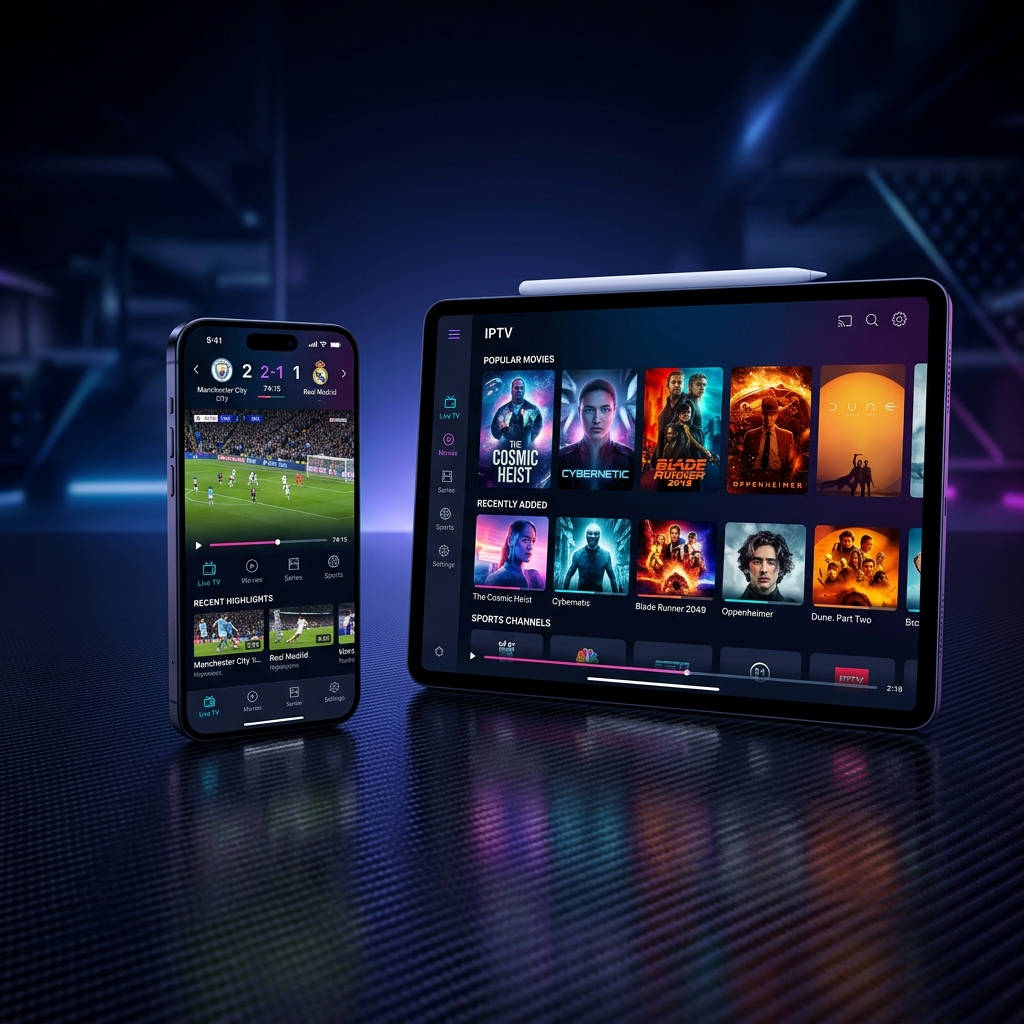
Watch Live TV on Your iPhone or iPad — Setup Takes Under 5 Minutes
Your iPhone and iPad are powerful streaming devices — yet most IPTV guides focus on Firestick and Android boxes and leave iOS users without clear instructions.
This guide fixes that. Whether you own an iPhone 15, an iPad Pro, or anything running iOS 17+, you'll have IPTV fully configured — with live channels, EPG guide, and VOD — by the time you finish reading.
💡 New to IPTV? Start with our Complete Beginner's Guide to IPTV to understand how it works before setting up.
📹 Watch: IPTV Setup on iPhone & iPad — Video Tutorials
🎬 Install IPTV on iPhone in 2026 — The Easiest Way (YouTube)
Step-by-step walkthrough for complete beginners — covers app install and Xtream Codes login.
🎬 Best IPTV Apps for iOS 2026 — Finally Fast & Stable (YouTube)
Honest comparison of the top iOS IPTV apps in 2026 — which ones actually work well on iPhone.
🎬 Install IPTV Smarters on iPhone — Easy Step-by-Step Guide (YouTube)
The most popular iOS IPTV app set up from scratch in minutes.
What You Need Before Starting
- ✅ An iPhone or iPad running iOS 17+ or iPadOS 17+
- ✅ A stable Wi-Fi connection (minimum 10 Mbps for HD, 25 Mbps for 4K)
- ✅ An active SWC-STREAM subscription (Xtream Codes credentials sent by email)
- ✅ An Apple ID to download apps from the App Store
🚀 No subscription yet? Start your free SWC-STREAM trial — no credit card required.
Important: iOS Is Different from Android
Before diving in, one key thing to understand:
iOS has fewer IPTV app options than Android due to App Store policies, but the apps available in 2026 are polished, well-supported, and handle all the core functionality you need.
Specifically:
- ❌ TiviMate is not available on iOS — it's Android-only
- ❌ No sideloading — all apps must come from the App Store
- ✅ AirPlay lets you cast from iPhone/iPad to Apple TV or any compatible Smart TV
- ✅ Picture-in-Picture (PiP) is supported by most iOS IPTV apps
Best IPTV Apps for iPhone & iPad in 2026
🥇 1. IPTV Smarters Pro — Best Overall for iOS
The iOS version of IPTV Smarters Pro is the most polished cross-platform IPTV player app available — same interface as Android, same setup process, same feature set. For Apple-ecosystem households, this is the IPTV app that works consistently across iPhone, iPad, and Apple TV.
- Price: Free (basic) / Small fee for full version
- Supports: M3U URL + Xtream Codes API
- EPG: ✅ Full program guide
- AirPlay: ✅ Cast to Apple TV
- PiP: ✅ Picture-in-Picture
🥈 2. GSE Smart IPTV — Best for Power Users
GSE Smart IPTV offers the best cross-device experience if you also use an Android device. It's one of the most feature-rich iOS IPTV apps available — handling unusual stream formats that simpler apps can't.
- Price: Free / $2.99 Pro upgrade
- Supports: M3U, Xtream Codes, JSON playlists
- EPG: ✅ Advanced grid-style guide
- AirPlay: ✅
- External players: ✅ (VLC, Infuse)
🥉 3. IPTVX — Best Native Apple Experience
IPTVX is a modern IPTV player that offers a sleek interface, fast performance, and advanced streaming features for iPhone and iPad users. It supports M3U playlists, Xtream Codes API, AirPlay 2, Picture-in-Picture, EPG, recordings, AI-powered features, and iCloud sync. The app automatically syncs your playlists across your Apple devices.
- Price: Paid (~$4.99 one-time)
- Supports: M3U + Xtream Codes
- EPG: ✅ One of the best on iOS
- iCloud sync: ✅ Across all Apple devices
- AirPlay 2: ✅
4. Flex IPTV — Best Lightweight Option
Flex IPTV is an outstanding Internet TV player for iOS and is considered one of the best IPTV players for iPhone 2026. The entire interface and features perfectly match the Apple ecosystem. It uses a freemium model: the free version is basic, while the premium version requires a $3.99 one-time purchase.
- Price: Free / $3.99 Pro
- Supports: M3U + Xtream Codes
- EPG: ✅
- Best for: Users who want a clean, simple interface
Quick App Comparison
| App | Price | Xtream Codes | EPG | AirPlay | Best For |
|---|---|---|---|---|---|
| IPTV Smarters Pro | Free | ✅ | ✅ | ✅ | Best overall |
| GSE Smart IPTV | Free / $2.99 | ✅ | ✅ | ✅ | Power users |
| IPTVX | ~$4.99 | ✅ | ✅ | ✅ | Apple ecosystem |
| Flex IPTV | Free / $3.99 | ✅ | ✅ | ✅ | Lightweight |
Step-by-Step Setup Guide
Method 1: IPTV Smarters Pro (Recommended)
Step 1: Download the app
- Open the App Store on your iPhone or iPad
- Search for "IPTV Smarters Pro"
- Tap Get to download and install
- Open the app
Step 2: Add your SWC-STREAM subscription
- Tap "Add New User"
- Select "Login with Xtream Codes API" (recommended)
- Enter your details:
- Any Name: e.g. SWC-STREAM
- Server URL: provided in your welcome email
- Username: provided in your welcome email
- Password: provided in your welcome email
- Tap "Add User"
Step 3: Load your channels
Channels and EPG load within 90 seconds. Once loaded, you'll see your full channel list organized by category — Live TV, Movies, Series.
Step 4: Test your setup
- Open a live channel and let it play for 1–2 minutes
- Check that the EPG (TV guide) is showing program information
- Try a VOD movie to confirm on-demand content works
✅ You're done! IPTV is now fully set up on your iPhone or iPad.
Method 2: GSE Smart IPTV
- Download GSE Smart IPTV from the App Store
- Open the app → tap "Remote Playlists"
- Tap the "+" icon → select "Xtream Code API"
- Enter your SWC-STREAM Server URL, Username, and Password
- Tap "Add" — channels and EPG load automatically
How to Cast IPTV from iPhone to Your TV (AirPlay)
One of the biggest advantages of IPTV on iPhone and iPad is AirPlay — the ability to stream directly to your Apple TV or AirPlay-compatible Smart TV.
Start playback in the IPTV app, then swipe the Control Centre and tap Screen Mirroring to cast to any Apple TV or AirPlay-compatible Smart TV. Your stream will appear instantly on the big screen.
Steps:
- Make sure your iPhone/iPad and Apple TV or Smart TV are on the same Wi-Fi network
- Start playing a channel in your IPTV app
- Swipe down from the top-right corner of your screen to open Control Center
- Tap "Screen Mirroring" or the AirPlay icon within the app
- Select your Apple TV or AirPlay TV from the list
- Your stream appears on the big screen instantly
📖 Related: Best IPTV App for Smart TV — Top 7 Picks
Tips for the Best IPTV Experience on iPhone & iPad
- Use Wi-Fi, not cellular — mobile data can cause buffering on HD/4K streams
- Connect to 5GHz Wi-Fi band — faster and less congested than 2.4GHz
- Enable PiP mode — watch IPTV in a floating window while using other apps
- Use Xtream Codes login (not M3U) — faster channel loading and automatic EPG
- Keep your app updated — iOS IPTV apps receive regular updates for stability
- Use AirPlay for big-screen viewing — no extra hardware needed if you have Apple TV
📖 Related: How to Optimize Your Connection for Buffer-Free Streaming
Troubleshooting Common iOS IPTV Issues
| Problem | Solution |
|---|---|
| App won't load channels | Double-check your Server URL, username, and password — one typo breaks everything |
| EPG not showing | Go to app settings → EPG → Force Update. Wait 2–3 minutes |
| Stream keeps buffering | Switch from cellular to Wi-Fi; connect to 5GHz band |
| AirPlay not working | Make sure iPhone and Apple TV are on the same Wi-Fi network |
| App crashes on launch | Delete and reinstall the app from the App Store |
| Some channels not working | These may be temporarily offline — try again later or contact SWC-STREAM support |
📖 Related: How to Fix IPTV Buffering — Complete Guide
Frequently Asked Questions
Is TiviMate available on iPhone?
TiviMate is not available on iOS. It's Android-only. The best alternatives for iPhone are IPTV Smarters Pro and GSE Smart IPTV, which offer similar features on iOS.
Can I use one SWC-STREAM subscription on my iPhone and other devices?
Yes — depending on your plan, you can stream on multiple devices simultaneously. Your Xtream Codes credentials work on any compatible app across all your devices. See our How to Choose the Right IPTV Plan guide for connection details.
Can I watch IPTV offline on iPhone?
Most iOS IPTV apps don't support offline viewing for live channels. IPTVX supports downloading select VOD content for offline playback — useful for travel.
Does IPTV work on cellular data?
Yes, but we recommend Wi-Fi for HD and 4K streaming. Cellular data (4G/5G) works for SD and HD streams, but can be inconsistent and may use a lot of data quickly.
What iOS version do I need?
iOS 17+ for iPhone and iPadOS 17+ for iPad are recommended for the best compatibility with all current IPTV apps in 2026.
Can I use IPTV on Apple TV with the same subscription?
Yes — apps like IPTV Smarters Pro, GSE Smart IPTV, and IPTVX are all available on Apple TV (tvOS). Use the same Xtream Codes credentials across all devices.
Conclusion: Your iPhone Is Now a Full IPTV Device
Setting up IPTV on iPhone and iPad is genuinely easy in 2026 — download an app from the App Store, enter your credentials, and you're watching live TV within minutes.
With SWC-STREAM, the same subscription that works on your Firestick and Smart TV works seamlessly on your iPhone and iPad. Start a stream on your phone, switch to AirPlay on the big screen, or watch with PiP while texting — it all just works.
🚀 Start your free SWC-STREAM trial today — set it up on your iPhone in under 5 minutes, no credit card required.
Tags: IPTV iPhone setup 2026, install IPTV iPad, IPTV Smarters Pro iOS, GSE Smart IPTV iPhone, IPTVX iPhone, AirPlay IPTV Apple TV, best IPTV app iOS 2026, SWC-STREAM iPhone setup
