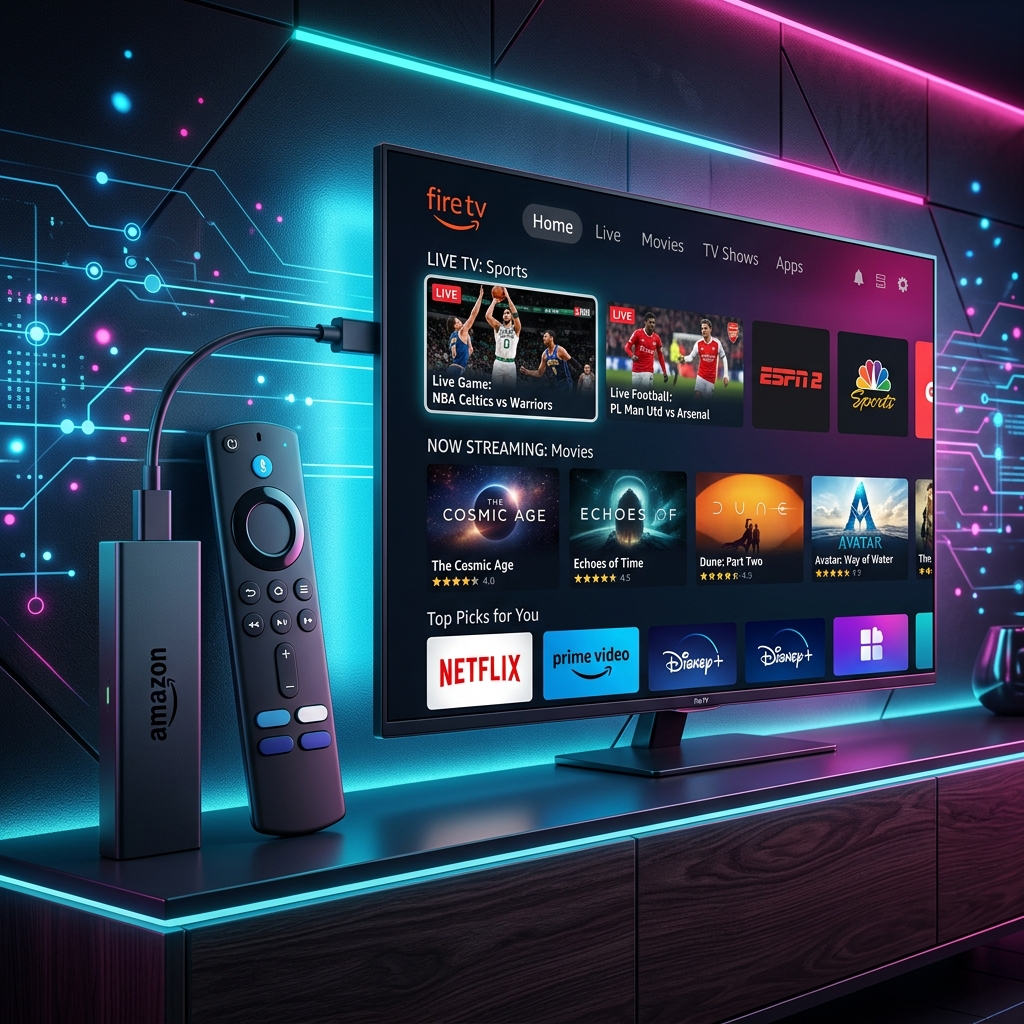
Turn Your Firestick Into a Complete TV System in Under 5 Minutes
The Amazon Firestick is one of the most popular devices for IPTV streaming — and for good reason. It's affordable, plugs directly into your TV's HDMI port, and runs Android-based apps perfectly.
If you've just bought a Firestick (or already own one) and want to set up IPTV, this guide will walk you through every single step — from enabling the right settings to installing your app and loading your channels.
By the end of this tutorial, you'll be streaming live TV, sports, and movies in just a few minutes.
What You'll Need Before Starting
Make sure you have the following ready:
- ✅ An Amazon Firestick (any generation: Lite, 4K, 4K Max)
- ✅ A stable internet connection (minimum 10 Mbps for HD)
- ✅ An active IPTV subscription (M3U link or Xtream Codes credentials)
- ✅ A remote control and a few minutes of patience
If you don't have a subscription yet, SWCSTREAM offers a free trial so you can test everything in this guide risk-free.
Step 1: Enable Apps from Unknown Sources
By default, the Firestick blocks installation of apps that aren't from the Amazon App Store. Since most IPTV apps (like TiviMate or IPTV Smarters) aren't listed there, you need to enable sideloading first.
How to do it:
- From the Firestick home screen, go to Settings (gear icon, far right)
- Select My Fire TV
- Select Developer Options
- Turn ON Apps from Unknown Sources
- A warning popup will appear — select Turn ON to confirm
✅ Note: If you don't see "Developer Options," go to My Fire TV → About, then click on your device name 7 times rapidly to unlock it.
Step 2: Install the Downloader App
The Downloader app lets you install any APK file directly onto your Firestick — it's the easiest way to sideload IPTV apps.
How to do it:
- Go back to the Firestick Home screen
- Click the search icon (magnifying glass, top left)
- Type "Downloader"
- Select the Downloader app (orange icon with an arrow)
- Click Get / Download, then Open
When you open Downloader for the first time, it may ask for permission to access photos/media — select Allow.
Step 3: Download Your IPTV App
Now it's time to install your preferred IPTV player. We recommend TiviMate or IPTV Smarters Pro — both work great with SWCSTREAM.
Using Downloader:
- Open the Downloader app
- In the URL bar, type the direct APK link for your chosen app:
- TiviMate:
tivimate.com - IPTV Smarters Pro: search "IPTV Smarters Pro APK download" for the official link
- TiviMate:
- Click Go
- Wait for the download to finish (usually 10–20 seconds)
- Click Install
- Once installed, click Open (or Done to install it later)
✅ Pro Tip: Always download APKs from the official developer website to avoid fake or malicious versions.
Step 4: Set Up Your IPTV App with SWCSTREAM
Once your app is installed, it's time to load your channels using your SWCSTREAM credentials.
If using TiviMate:
- Open TiviMate
- Select Add Playlist
- Choose Xtream Codes (recommended) or M3U Playlist
- Enter your SWCSTREAM details:
- Server URL / Portal
- Username
- Password
- Click Add Playlist
- Wait a few seconds while channels load — then you're ready to watch!
If using IPTV Smarters Pro:
- Open IPTV Smarters Pro
- Select Login with Xtream Codes API
- Enter:
- Username (any name you like, for your own reference)
- Server URL / Portal URL
- Username and Password (provided by SWCSTREAM)
- Click Add User
- Your channel list, EPG, and VOD library will load automatically
Step 5: Organize Your Channels (Optional but Recommended)
Once your channels are loaded, take a minute to set things up properly:
- ⭐ Mark your favorite channels for quick access
- 📺 Group channels by category (Sports, Movies, News, Kids)
- 🗓️ Enable the EPG (TV Guide) if your app supports it, so you can see what's airing now and later
- 🔢 Hide unused channels to keep your list clean
Step 6: Test Your Stream
Before fully settling in, test a few different channels to confirm everything works smoothly:
- Open a popular live channel (e.g., a sports or news channel)
- Let it play for 2–3 minutes to check for buffering
- Try a VOD movie or series to confirm the on-demand library works
- Test the EPG by clicking on a program listing
If everything plays smoothly without freezing, congratulations — your Firestick IPTV setup is complete! 🎉
Troubleshooting Common Setup Issues
| Issue | Solution |
|---|---|
| Downloader app won't install | Make sure "Apps from Unknown Sources" is enabled (Step 1) |
| APK download fails | Check your internet connection or try a different APK source |
| App installed but no channels load | Double-check your username/password and server URL — even one typo will break the connection |
| Channels load but stream buffers | See our full guide: How to Fix IPTV Buffering |
| App crashes on launch | Clear app cache via Settings → Applications → Manage Installed Apps |
Bonus: Best Firestick Settings for Smooth IPTV Streaming
A few extra tweaks can noticeably improve your streaming experience:
- Free up storage — Go to Settings → My Fire TV → Storage, and uninstall apps you don't use
- Close background apps — Hold the Home button and close any apps running in the background
- Use a wired connection — An Ethernet adapter for Firestick eliminates Wi-Fi instability
- Disable auto-updates during streaming hours — Prevents background downloads from slowing your connection
- Restart your Firestick weekly — Keeps performance smooth over time
Frequently Asked Questions
Do I need to jailbreak my Firestick to install IPTV?
No. "Jailbreaking" isn't necessary — simply enabling Apps from Unknown Sources (Step 1) is enough to install IPTV apps safely.
Which Firestick model works best for IPTV?
All models work, but the Fire TV Stick 4K Max offers the best performance thanks to its faster processor and Wi-Fi 6 support.
Can I install IPTV without the Downloader app?
Yes, alternatives like Apps2Fire or sending the APK directly via ADB exist, but Downloader is by far the simplest method for beginners.
Is it safe to sideload IPTV apps on Firestick?
Yes, as long as you download APKs from official, trusted sources. Avoid random third-party APK sites with excessive ads or pop-ups.
How long does the whole setup take?
With everything ready (subscription, internet connection), the entire process takes under 5 minutes.
Conclusion: Your Firestick Is Now a Complete Streaming Powerhouse
That's it — your Firestick is now fully set up for IPTV streaming with thousands of live channels, movies, and series at your fingertips.
If you haven't subscribed yet, SWCSTREAM offers a free trial so you can follow this exact tutorial and test everything before committing to a plan.
🚀 Get your free SWCSTREAM trial today and start streaming on your Firestick in minutes. Get Started Now.
Tags: install IPTV Firestick, Firestick IPTV setup 2026, Downloader app IPTV, TiviMate Firestick install, IPTV Smarters Firestick, SWCSTREAM Firestick, sideload IPTV app, Firestick streaming guide
