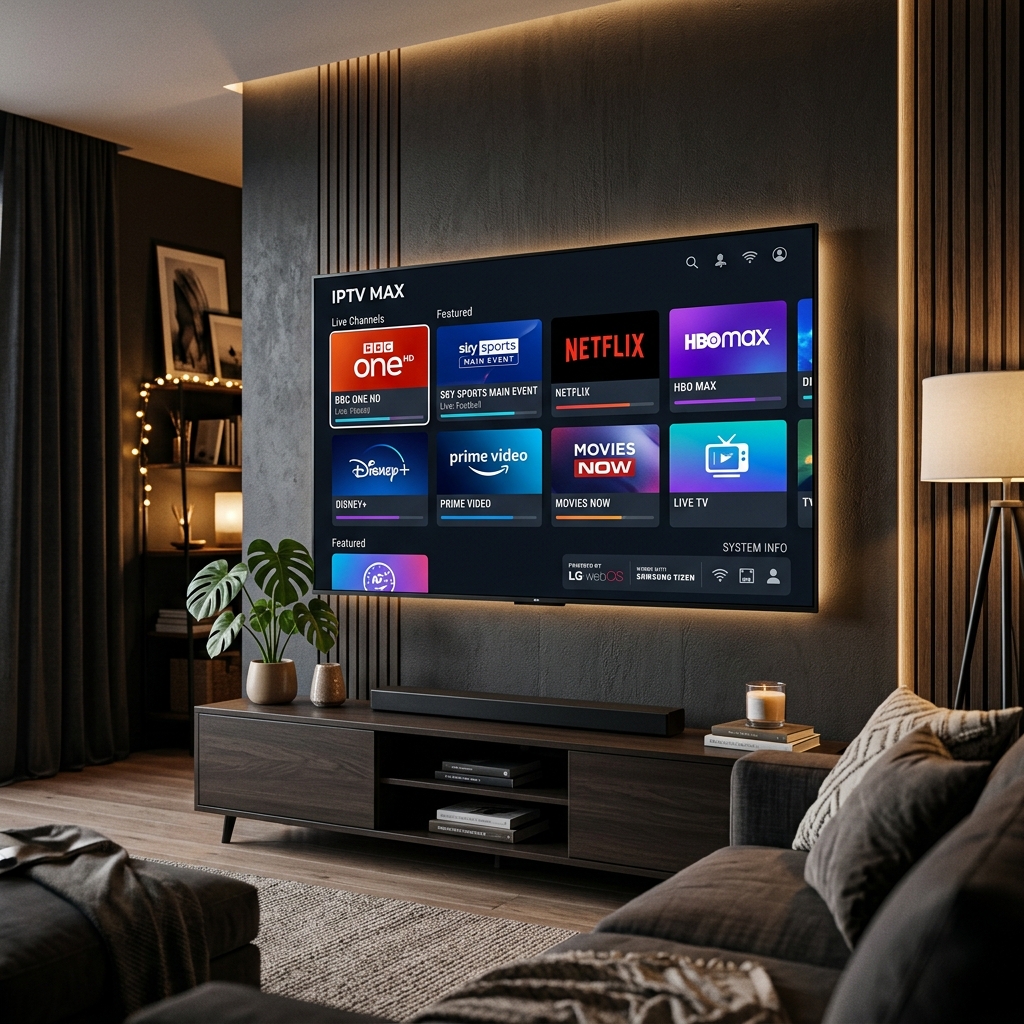
Unlike Android-based devices, Samsung (Tizen OS) and LG (webOS) Smart TVs run closed app ecosystems. That means popular players like TiviMate or IPTV Smarters Pro often aren't available directly, and instead you'll use a MAC-address-based app such as Smart IPTV (SIPTV) or IBO Player. Here's exactly how it works on both brands.
Before You Start
Make sure you have:
- 📺 A Samsung (2016+) or LG (2016+) Smart TV connected to Wi-Fi or Ethernet
- ⚡ A stable internet connection — at least 20 Mbps is recommended for smooth HD/4K playback (see our guide to optimizing your connection for buffer-free streaming)
- 📂 Your M3U playlist URL or Xtream Codes login (server, username, password) — check our M3U vs. Xtream Codes explainer if you're not sure which you have
- 🛍️ Access to your TV's own app store (Samsung: Smart Hub / LG: LG Content Store)
Installing IPTV on a Samsung Smart TV (Tizen OS)
- Press Home on your remote and open the Samsung App Store.
- Search for Smart IPTV (or an alternative like IBO Player if SIPTV isn't listed in your region).
- Install and open the app. It will display a MAC address on screen — write this down.
- On your phone or computer, go to the Smart IPTV playlist portal and enter your TV's MAC address along with your M3U URL (or generate one from your Xtream Codes details).
- Save, then restart the app on your TV. Your channel list should load within a minute.
Installing IPTV on an LG Smart TV (webOS)
- Press the Home button and open the LG Content Store.
- Search for Smart IPTV (available in most regions directly through the store) or SS IPTV as a free alternative.
- Open the app and note the MAC address or activation code shown on screen.
- Head to the same Smart IPTV portal (or ss-iptv.com for SS IPTV) and link your MAC address with your playlist.
- Restart the app — channels and EPG should populate automatically.
📹 Video Tutorial: Watch How to Install IPTV Smarters Pro on Any Smart TV — Step-by-Step Guide (YouTube) for a complete step-by-step visual demonstration.
If Your TV's App Store Doesn't Have a Compatible App
Some regions have had IPTV player apps pulled from the Samsung or LG store. In that case, your two options are:
- 💾 Sideload via USB — download the app package to a USB drive and let your TV detect it automatically.
- 🔌 Use an external streaming device instead, such as a Fire TV Stick 4K Max, which supports the full range of Android-based IPTV players.
Common Issues and Fixes
- Channels not loading: Double-check the MAC address and M3U URL match exactly what's registered on the portal.
- App missing from the store: This is usually a regional restriction — try the USB sideload method instead.
- Buffering or freezing: Almost always a bandwidth issue rather than an app problem — see our complete guide to fixing IPTV buffering.
- App disappears after a firmware update: Common on both Samsung and LG. Simply repeat the installation steps.
A Quick Legal Note
Not every IPTV source you can load into these apps has the rights to distribute the channels it offers. Before subscribing to any provider, check our Is IPTV Legal in 2026? guide to understand the difference between licensed and unlicensed services.
FAQ
Do I need to buy a subscription to use Smart IPTV?
The app itself only plays content — it doesn't include channels. You'll need your own M3U or Xtream Codes playlist from a provider.
Can I use TiviMate on my Samsung or LG TV?
No — TiviMate is only available on Android-based platforms. For a similar experience on Samsung/LG, you'd need to connect an external Android TV box or Fire TV Stick.
Does the MAC address change if I factory reset my TV?
Yes, in most cases — you'll need to re-register the new MAC address on the portal.
Related reading: How to Install/Set Up IPTV on Firestick — The Ultimate 2026 Guide, Best IPTV App for Smart TV in 2026
