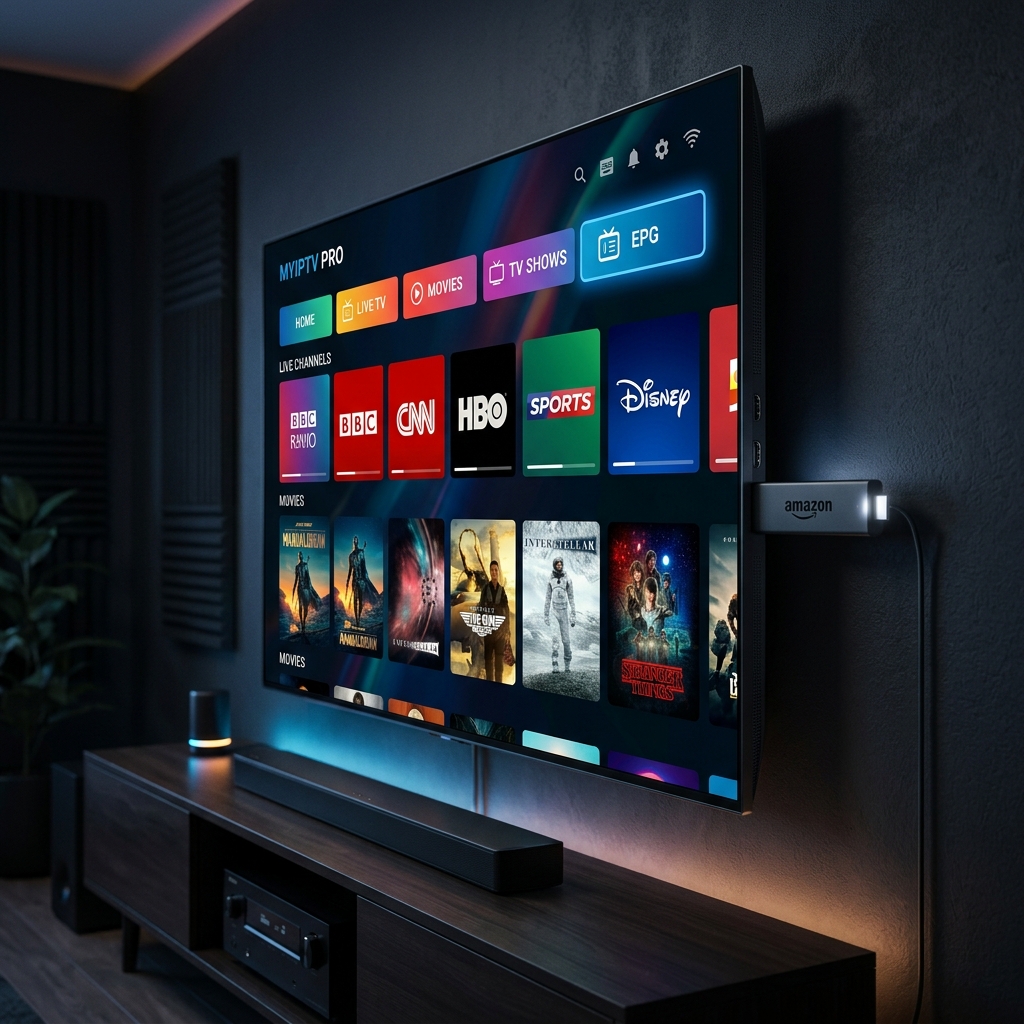
The Fire TV Stick 4K Max is one of the most popular streaming devices for IPTV, thanks to its Wi-Fi 6 support, fast Wi-Fi antenna, and enough processing power to handle 4K playback without constant buffering. If you're setting one up for IPTV in 2026, here's what actually matters — and how to get the best performance out of it.
Why the Firestick 4K Max Works Well for IPTV
Unlike the base Fire TV Stick, the 4K Max has:
- ⚡ Wi-Fi 6 support — better throughput and less interference in crowded networks, which matters a lot for live streaming.
- 🧠 More RAM and a faster processor — fewer crashes when running IPTV player apps like IPTV Smarters Pro or TiviMate.
- 📺 Native 4K/HDR decoding — important if your provider offers 4K channels or VOD content.
See the official Amazon Fire TV Stick 4K Max product page for full hardware specs.
What to Look For in an IPTV Setup for This Device
- A dedicated IPTV player app (TiviMate or IPTV Smarters Pro) rather than relying on a browser.
- A stable playlist source (M3U or Xtream Codes) — see our M3U vs. Xtream Codes guide.
- Enough home bandwidth — we recommend at least 25 Mbps for smooth 4K streaming; see our guide to optimizing your connection for buffer-free streaming.
- A licensed content source. Always confirm that whatever service or channels you're accessing have proper distribution rights in your country — see our Is IPTV Legal in 2026? guide for how to check.
Step-by-Step: Setting Up IPTV on Firestick 4K Max
- From the Fire TV home screen, go to **Settings > My Fire TV > Developer Options** and enable **Apps from Unknown Sources** (only if sideloading a player app not available on the Amazon Appstore).
- Install your IPTV player app of choice from the Amazon Appstore or via Downloader.
- Open the app and enter your playlist URL or Xtream Codes login details.
- Let the app load the channel list and EPG (electronic program guide).
- Adjust playback settings — buffer size, video decoder (hardware vs. software) — if you notice lag.
📹 Video Tutorial: Watch ULTIMATE Firestick IPTV Players — Full Tutorial (YouTube) for a complete walkthrough of the setup process.
Fixing Common Firestick IPTV Issues
- Buffering: Usually a bandwidth or Wi-Fi interference issue — see our How to Fix IPTV Buffering guide.
- App crashes: Clear cache under **Settings > Applications > Manage Installed Applications**.
- Audio/video sync problems: Try switching the decoder setting from hardware to software (or vice versa) in your player app.
A Quick Note on Legality
Not every IPTV source available for Firestick has the rights to distribute the channels it offers. Before subscribing to any service, check whether it operates transparently, lists verifiable company information, and doesn't offer unrealistically large channel bundles for very low prices — these are common red flags for unlicensed reselling. Our Is IPTV Legal in 2026? article breaks this down in more detail.
FAQ
Does the Firestick 4K Max support all IPTV apps?
Most player apps built for Fire TV (IPTV Smarters Pro, TiviMate, Perfect Player) run natively on the 4K Max.
Do I need a VPN for IPTV on Firestick?
Not required, but many users add one for privacy. See our Best VPN for IPTV Streaming guide.
Can I use the remote to control playback fully?
Yes — most IPTV apps support standard Fire TV remote controls (play/pause, rewind, channel change).
Related reading: How to Install/Set Up IPTV on Firestick — The Ultimate 2026 Guide, Best IPTV Accessories
