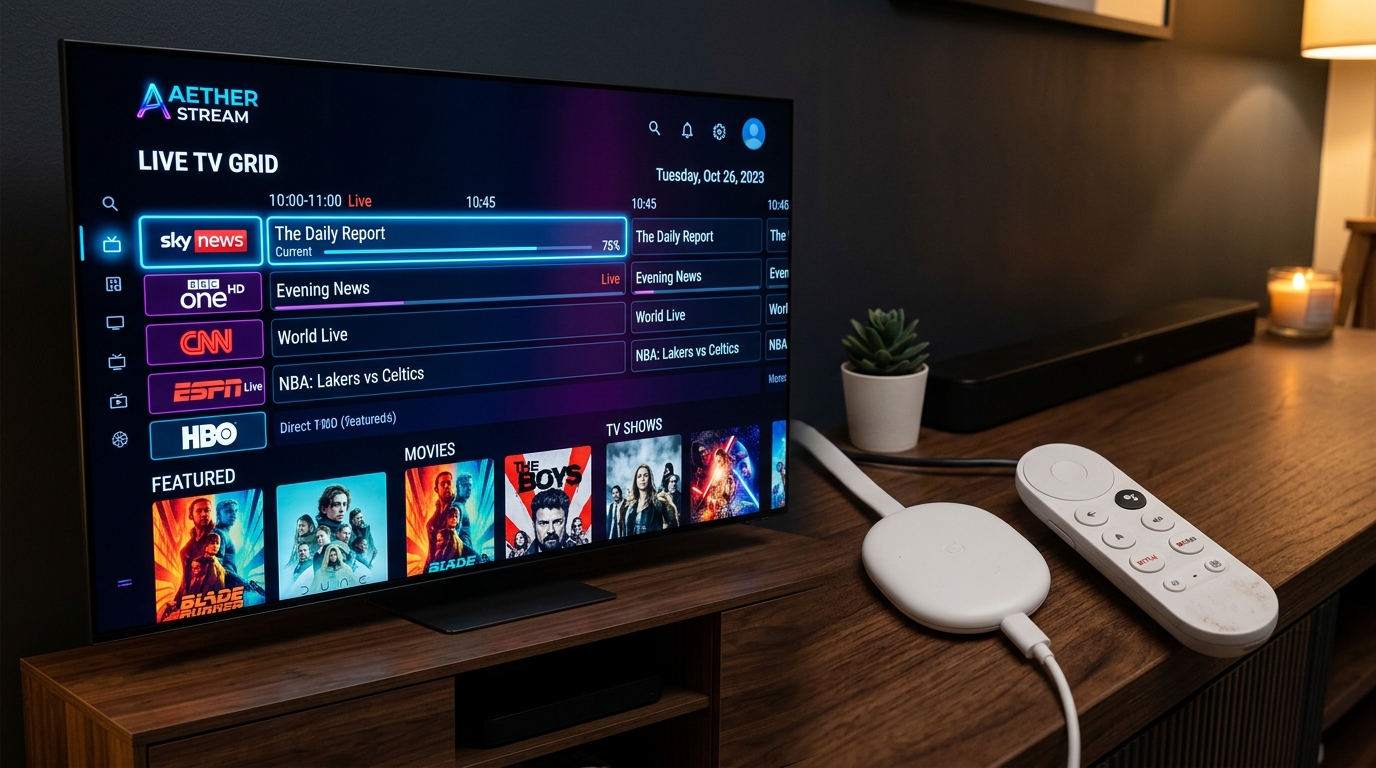
As of 2026, the Chromecast with Google TV is one of the most popular budget streaming devices on the market, and it fully supports IPTV apps for 4K streaming. Over 100 million Chromecast devices have been sold worldwide.
That makes this guide more relevant than ever — and the good news is that setting up IPTV on Chromecast is easier than most people expect.
But the process depends entirely on which Chromecast model you have. This guide covers every model, every method, and every app — so you can get SWCSTREAM running on your Chromecast tonight.
💡 New to IPTV? Start with our complete beginner's guide to IPTV before diving into the device setup.
First: Which Chromecast Do You Have?
Google has sold two very different types of Chromecast and the setup process depends entirely on which one you own.
| Model | OS | IPTV Apps | Best Method |
|---|---|---|---|
| Chromecast with Google TV (2020+) | Android TV | ✅ Google Play Store | Direct install — best experience |
| Chromecast with Google TV HD (2022) | Android TV | ✅ Google Play Store | Direct install |
| Classic Chromecast (1st/2nd/3rd Gen) | Cast only | ❌ No apps | Cast from phone |
📌 Bottom line: If you're buying new, get the Chromecast with Google TV. It runs Android TV, has the Google Play Store, and supports all the same IPTV apps as a Firestick.
If you have a classic Chromecast dongle, skip to Method 4 (Screen Casting). If you have a Chromecast with Google TV, use Methods 1, 2 or 3 for the best experience.
Method 1: TiviMate via Google Play Store (Best — Chromecast with Google TV Only)
TiviMate is the most popular IPTV app for Android TV devices. It gives you a full cable TV-style interface with an electronic program guide, favourites, and smooth playback.
Steps:
- From your Google TV home screen, go to Apps → open Google Play Store
- Search for "TiviMate IPTV Player" and install
- Open TiviMate → select Add Playlist
- Choose M3U Playlist → enter your SWCSTREAM M3U URL
- Name the playlist (e.g. "SWCSTREAM") → tap Add
- Your full channel list loads with EPG — start watching
TiviMate on Chromecast with Google TV delivers the same best-in-class experience as on a Firestick — fast channel switching, full 7-day EPG, VOD browsing, and catch-up TV. If you're used to TiviMate on other devices, the interface is identical.
📺 Video Tutorial: How to Install IPTV on Chromecast Google TV — Full Setup 2026
Method 2: IPTV Smarters Pro via Sideload (Chromecast with Google TV)
IPTV Smarters Pro has completely vanished from the official Google TV Play Store. To install it, you must sideload the app using the free Downloader app.
Step 1: Enable Developer Options
Go to Settings → System → About → click on "Android TV OS Build" 7 times until you see the message: "You are now a developer." Go back to Settings → System → Developer Options → enable "Unknown Sources" for Downloader.
Step 2: Install Downloader
- Open Google Play Store → search "Downloader by AFTVnews" → install
Step 3: Sideload IPTV Smarters Pro
⚠️ Storage Warning: Before sideloading, go to Settings → System → Storage and clear cache to free space. Chromecast devices have limited storage — less than 500MB free causes silent installation failure.
- Open Downloader → enter the IPTV Smarters Pro APK URL:
https://www.iptvsmarters.com/smarters.apk - Download completes → tap Install → tap Install Anyway if warned
- Open IPTV Smarters Pro → select Login with Xtream Codes API
- Enter your SWCSTREAM server URL, username, and password
- All channels, EPG, and VOD load automatically
🎬 Video Walkthrough: How to install IPTV Smarters pro on Google TV 2026
Method 3: GSE Smart IPTV (Google Play Store — Available Officially)
GSE Smart IPTV is available directly in the Google TV Play Store — no sideloading required. It supports M3U playlists, Xtream Codes, and full EPG.
Steps:
- Google Play Store → search "GSE Smart IPTV" → install
- Open GSE Smart IPTV → tap Remote Playlists
- Tap the + button → select Xtream Codes API
- Enter your SWCSTREAM credentials → tap Add
- Your channels and VOD library load — browse and watch
Once these steps are completed, restart the app and enjoy your IPTV channels. GSE Smart IPTV is an excellent choice if you want a no-sideload solution that's always available through the official store.
🎥 Dedicated Tutorial: How To Install GSE Smart IPTV On Android (Step By Step 2026)
Method 4: Cast from Android Phone (Classic Chromecast & Google TV)
If you have an older Chromecast without Google TV, this is your primary method. It also works as a backup on newer models.
📶 Both devices must be connected to the exact same Wi-Fi network for casting to work.
Steps:
- Install IPTV Smarters Pro or GSE Smart IPTV on your Android phone
- Set up your SWCSTREAM credentials in the app — see our Android setup guide
- Open the IPTV app on your phone → select a channel or VOD title
- Tap the Cast icon (rectangle with Wi-Fi symbol) in the top corner
- Select your Chromecast from the list
- The stream appears on your TV — use your phone as a remote
IPTV One for Android supports native Chromecast casting with approximately 150ms latency — essentially real-time for live TV viewing.
Limitation: Your phone screen must stay on and the app open while casting. Use your phone's "Stay awake while charging" option in Developer Settings to prevent the screen timing out.
Method 5: Cast from Chrome Browser (PC/Mac to Chromecast)
Any Chromecast model can receive a tab cast from Chrome on your PC or Mac. Open your SWCSTREAM web player in Chrome, press the Cast icon in Chrome's address bar, select your Chromecast, and the stream appears on your TV.
This works on any generation Chromecast but is best used as a backup — the quality and stability are lower than direct app installation.
Chromecast vs Firestick for IPTV: Honest Comparison
| Feature | Chromecast with Google TV | Amazon Firestick 4K Max |
|---|---|---|
| Price | ~$50 (4K) / ~$30 (HD) | ~$60 |
| IPTV App Support | ✅ Google Play + Sideload | ✅ Amazon + Sideload |
| TiviMate | ✅ Google Play | ✅ Sideload |
| IPTV Smarters | ⚠️ Sideload only | ✅ Amazon Appstore |
| 4K HDR Support | ✅ Dolby Vision, HDR10+ | ✅ Dolby Vision, HDR10+ |
| Ethernet Adapter | ✅ USB-C adapter | ✅ USB-C adapter |
| RAM & Storage | 2GB RAM / 8GB Storage | 2GB RAM / 8GB Storage |
| Remote & Voice | Google Assistant | Alexa |
| Best For | Google ecosystem users | Amazon ecosystem users |
Both devices deliver an excellent IPTV experience. Choose Chromecast if you're in the Google ecosystem (Android phone, Google Home, YouTube). Choose Firestick if you're an Amazon Prime member or want IPTV Smarters available directly from the app store. Our complete Firestick setup guide covers the Firestick route in full.
Optimising IPTV on Chromecast
Use Ethernet. Always use 5GHz Wi-Fi or an Ethernet adapter for IPTV streaming on Chromecast. 2.4GHz Wi-Fi causes buffering with HD IPTV streams. The Chromecast with Google TV uses USB-C — a USB-C to Ethernet adapter ($10–$15) gives you a wired connection and eliminates Wi-Fi buffering entirely.
Close background apps. Chromecast with Google TV has limited RAM (2GB). Close unused apps before streaming. Go to Settings → Apps → See All Apps → force stop anything running in the background before a big match.
Clear cache regularly. Go to Settings → Apps → [IPTV App] → Clear Cache. Do this monthly to prevent slowdowns from cache buildup.
Set resolution explicitly. Go to Settings → Display & Sound → Advanced Display Settings → set to 4K (Ultra HD) rather than Auto. This prevents handshake failures when switching to 4K channels.
Check internet speed first. Run Ookla Speedtest on your Chromecast (download the app from Google Play) or on your phone connected to the same Wi-Fi. You need 25+ Mbps for stable 4K. Our internet optimization guide covers router settings for peak performance.
Troubleshooting Chromecast IPTV
- TiviMate shows "Playlist URL Error" — Re-enter your SWCSTREAM M3U URL manually — avoid copy-paste which may add invisible characters. Confirm your subscription is active at Contact Support.
- IPTV Smarters sideload fails silently — Clear device storage first (Settings → System → Storage → Clear Cache). You need at least 500MB free for sideloaded apps to install. See our IPTV not working — 10 fixes guide.
- Casting quality is poor or drops frequently — Switch from 2.4GHz to 5GHz Wi-Fi, or use an Ethernet adapter. Casting over Wi-Fi is always less stable than direct app streaming. Our buffering fix guide covers every solution.
- Developer Options not showing — Make sure you're clicking "Android TV OS Build" — not "Build Number" which appears above it. Click exactly 7 times with a short pause between each click.
- App crashes on startup — Low storage is the most common cause. Delete unused apps and clear cache on all remaining apps. Then reinstall the IPTV app.
What You Get with SWCSTREAM on Chromecast
Every SWCSTREAM plan gives you full access on Chromecast with Google TV:
- 📺 25,000+ live channels from 190+ countries
- 🎬 100,000+ VOD — movies and series updated daily
- 🏆 All sports — Premier League, NFL, NBA, UEFA, UFC, F1
- 📅 Full 7-day EPG — programme guide built in
- 💎 4K Ultra HD — on Chromecast 4K with Google TV
- ⏱️ 99.99% uptime — anti-freeze multi-server infrastructure
- 📱 All devices — one subscription, every screen you own
Subscribe at Pricing & Plans. Want to test first? Our free trial guide covers exactly what to verify on your Chromecast before committing.
Final Thoughts
Chromecast with Google TV is one of the best entry points for IPTV because it combines affordability with genuine smart TV power. You're not buying a locked-down box — you're getting a full Android TV experience with access to the Google Play Store and thousands of apps.
TiviMate via Google Play is the quickest and cleanest setup. IPTV Smarters via sideload gives you the Xtream Codes login format. GSE Smart IPTV is the no-sideload alternative. And for older Chromecast models, screen casting from your Android phone works reliably.
For a full comparison of every device SWCSTREAM supports — Firestick, Smart TV, MAG Box, Android Box, iPhone, PS5, Xbox, PC, and now Chromecast — our guide on how to watch 25,000+ channels on any screen covers every setup in one place. 🚀
Ready to Stream IPTV on Your Chromecast?
Get instant access to 25,000+ live channels, 100,000+ movies & TV shows, and buffer-free 4K sports with SWCSTREAM.