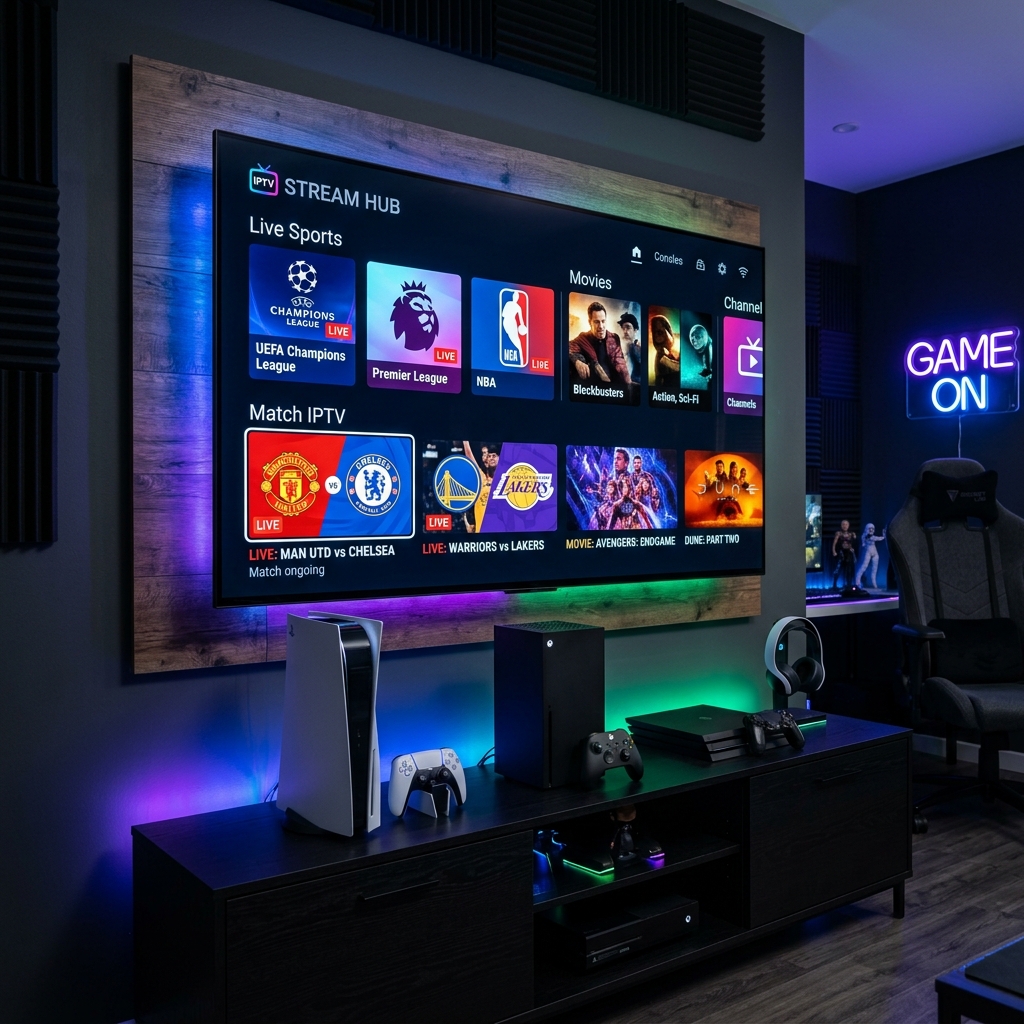
Your gaming console is already connected to your best TV, plugged into your fastest HDMI port, and running on your home network 24/7. So why pay for a separate streaming device when you can turn your PlayStation or Xbox into a full IPTV powerhouse?
The PS5 custom SSD and powerful GPU deliver instant channel switching and smooth playback even for demanding 4K HDR streams. Gaming consoles are powerful streaming devices that most households already own. In 2026, both PlayStation 5 and Xbox Series X can run IPTV — but the process differs between platforms.
This guide covers every working method for PS4, PS5, and Xbox — honestly, without hiding the limitations — so you can choose the right setup for your situation.
⚠️ What You Need to Know Before You Start
Gaming consoles are not purpose-built IPTV devices. Unlike a Firestick, Android Box, or MAG Box, they don't have native IPTV app support through their official stores (except Xbox, which has limited Microsoft Store options). This means the setup is slightly more involved — but absolutely doable.
Here's the honest overview before we dive into steps:
| Console | Native IPTV App? | Best Method | Difficulty |
|---|---|---|---|
| PS5 | ❌ None available | Web browser player | ⭐ Easy |
| PS4 | ❌ None available | Web browser player | ⭐ Easy |
| Xbox Series X/S | ✅ MyIPTV Player | Microsoft Store app | ⭐ Very Easy |
| Xbox One | ✅ MyIPTV Player | Microsoft Store app | ⭐ Very Easy |
💡 Honest Recommendation:
Your gaming console is designed for gaming. A $35 Firestick is designed for streaming. Use each device for what it does best. The IPTV experience on a Firestick is dramatically better than any console workaround. If IPTV is a priority, adding a Firestick to your setup gives you the best experience. But if you only have your console and want to watch right now — this guide has you covered.
Before starting, run a speed test at Ookla Speedtest to confirm you have at least 15 Mbps for HD streaming. For 4K, you'll need 25 Mbps or more.
🎮 Part 1: IPTV on PS5 — Every Working Method
Method 1: Web Browser Player (Easiest — Start Here)
Many IPTV providers offer web-based players that work directly in the browser without any additional apps or setup. On your PS5, navigate to the Media section from the home screen and open the Internet Browser.
SWCSTREAM provides a web player interface accessible directly from your PS5 browser. Here's how:
- On your PS5 home screen, go to Media → Internet Browser.
- Navigate to your SWCSTREAM web player URL (provided in your welcome email).
- Log in with your SWCSTREAM username and password using Xtream Codes.
- Your full channel list loads — select any channel and start watching.
The PS5 supports picture-in-picture mode in its web browser, which means you can watch IPTV in a small window while playing games or browsing the PlayStation Store. This is genuinely useful — half-time scores while you're in a game lobby, for example.
Limitations: The PS5 browser doesn't support all video formats natively, and channel switching is slower than a dedicated app. But for casual viewing or catching a match without switching inputs, it works well.
For a video walkthrough of the PS5 browser IPTV method, watch How to Watch IPTV on PS5 & Xbox — Best Apps, Setup & Services 2026 — covers both browser and alternative methods in detail.
Method 2: IPTV Smarters Pro via Browser Download
In the PlayStation browser, you can access IPTV web interfaces or download supported app files directly.
Steps:
- Open the PS5 Internet Browser.
- Go to the official IPTV Smarters Pro site (
https://iptv-smarterspro.org/) and find the Smart TV download section. - Download and install the app file for your device architecture.
- Open IPTV Smarters Pro and select Login with Xtream Codes API.
- Enter your SWCSTREAM server URL, username, and password.
- Your full channel list, EPG, and VOD library loads automatically.
For a step-by-step video of this installation on PS5/PS4, watch How to install / Use IPTV Smarters pro on PS4.
Method 3: Plex Media Server (Most Complete, Most Complex)
Plex turns your PC into a media server that your PS5 connects to as a client — giving you a full IPTV interface through the official Plex app, which is available on the PlayStation Store.
What you need:
- A Windows or Mac PC running Plex Media Server (must stay on while watching)
- The Plex app installed on PS5 from the PlayStation Store
- Your SWCSTREAM M3U URL
Simplified steps:
- Download and install Plex Media Server on your PC or Mac.
- Install the IPTV plugin for Plex and configure it with your SWCSTREAM M3U URL.
- Download the Plex app on PS5 from the PlayStation Store.
- Sign in to Plex and connect to your home server.
- Navigate to Live TV in Plex to see your SWCSTREAM channels.
📌 Important Note on Plex:
Plex needs to be open on your computer all the time before watching the channels on your PS4/PS5. If your PC goes to sleep or Plex closes, streaming stops. This is the main practical limitation of this method.
For the M3U URL format needed to connect SWCSTREAM to Plex, our M3U vs Xtream Codes guide explains both formats clearly.
Method 4: Screen Mirroring from Android
If you have an Android phone with your IPTV app running, you can mirror your screen to your PS5 via PS Remote Play or cast directly to your TV using Chromecast, then switch back to the console when done. This is an easy backup method when other options aren't convenient.
🎮 Part 2: IPTV on PS4 — Step by Step
The PS4 methods are nearly identical to PS5. The browser-based approach and Plex method both work the same way.
Web browser on PS4:
- On the PS4 home screen, find the Internet Browser (in the Content Area or Library).
- Navigate to your SWCSTREAM web player URL.
- Log in and start watching.
IPTV Smarters Pro on PS4:
Follow the same browser download steps as PS5. The process is identical — PS4 browser → IPTV Smarters site → download → install → enter SWCSTREAM Xtream Codes credentials.
For a video walkthrough of IPTV Smarters on PS4, watch How to install / Use IPTV Smarters pro on PS4.
🎮 Part 3: IPTV on Xbox — The Easiest Console Setup
Xbox has a clear advantage over PlayStation for IPTV: MyIPTV Player is available directly in the Microsoft Store. This means a native, purpose-built IPTV app you can download directly — no workarounds needed.
Method 1: MyIPTV Player (Microsoft Store — Recommended)
Steps:
- On your Xbox, open the Microsoft Store.
- Search for MyIPTV Player and download it (free).
- Open MyIPTV Player and select Add new playlist and electronic programme guide (EPG).
- Enter your SWCSTREAM M3U URL or Xtream Codes credentials.
- Select Update Playlist & EPG.
- Your full SWCSTREAM channel list loads — browse, favourite, and watch.
MyIPTV Player supports M3U playlists, EPG guide data, and catch-up TV — the full IPTV experience delivered natively on Xbox. Channel switching is fast, the interface is clean, and the experience is genuinely comparable to a dedicated streaming device.
Method 2: IPTV Smarters Pro (Microsoft Store)
IPTV Smarters Pro is also available in the Microsoft Store for Xbox. The setup mirrors the mobile app:
- Download IPTV Smarters Pro from the Microsoft Store.
- Select Login with Xtream Codes API.
- Enter your SWCSTREAM server URL, username, and password.
- All channels, VOD, and EPG load automatically.
This is the preferred method if you're already using IPTV Smarters on other devices — same interface, same credential format, consistent experience across all your screens.
Xbox Network Requirements
For the best Xbox IPTV experience, connect via Ethernet rather than Wi-Fi. Xbox Series X and Xbox One both have Gigabit Ethernet ports — use them. Our internet optimization guide covers router settings that specifically improve live streaming performance.
📊 Console IPTV vs Dedicated Streaming Device: The Real Comparison
| Feature | PS5/PS4 (Browser) | Xbox (MyIPTV) | Firestick 4K |
|---|---|---|---|
| Setup difficulty | ⭐⭐ Moderate | ⭐ Easy | ⭐ Easy |
| App availability | ❌ Workaround only | ✅ Microsoft Store | ✅ Amazon Appstore |
| Channel switching speed | ⚠️ Slower | ✅ Fast | ✅ Fast |
| 4K HDR support | ✅ Yes | ✅ Yes | ✅ Yes |
| EPG quality | ⚠️ Basic | ✅ Full EPG | ✅ Full EPG |
| Power consumption | ❌ 100–200W | ❌ 100–150W | ✅ 5W |
| Portability | ❌ None | ❌ None | ✅ Pocket-sized |
| Price | Already owned | Already owned | ~$35 |
Running a console for extended TV watching increases power consumption and fan wear. A Firestick uses 5W vs 100–200W for a console running the same content. If you watch IPTV for several hours daily, a dedicated Firestick will significantly outlast your console's fan and components — and cost less electricity every month. Our complete Firestick setup guide covers the full setup in under 5 minutes.
🛠️ Troubleshooting: Common Console IPTV Problems
- PS5/PS4 browser keeps buffering: Switch from Wi-Fi to a wired connection if possible. Run a speed test at Ookla Speedtest — you need at least 15 Mbps stable for HD. Our buffering fix guide covers every fix in order.
- Can't find Internet Browser on PS5: On PS5, the browser is in the Media tab of the home screen. If you still can't find it, go to Settings → User's Guide → Media → Internet Browser.
- Xbox MyIPTV Player shows empty channel list: Re-check your M3U URL for typos. Make sure you're using the M3U format (not Xtream Codes) if entering a URL directly. Our M3U vs Xtream Codes guide explains which format to use for each app.
- Authorization failed error on any console: Double-check your SWCSTREAM credentials. An expired subscription or incorrectly entered server URL are the most common causes. Our IPTV not working — 10 fixes guide covers every authorization error scenario.
- Plex stops working mid-stream (PS4/PS5 method): This means Plex Media Server closed or your PC went to sleep. Open Plex on your PC again and disable sleep mode on your computer while streaming. Set your PC's power settings to "Never sleep" during IPTV sessions.
🎯 Which Setup Is Right for You?
Best for PS5/PS4 users who want zero extra hardware:
Use the web browser method first — it's instant and requires nothing beyond your existing SWCSTREAM subscription. If you want a cleaner interface, install IPTV Smarters Pro via the browser download method.
Best for Xbox users:
Download MyIPTV Player from the Microsoft Store. It's the most complete native IPTV experience available on any gaming console in 2026.
Best for serious IPTV viewers with a console:
Add a Firestick 4K ($35) to your TV's other HDMI input. Game on your console, stream on your Firestick — two HDMI inputs, best experience on both. See our how to watch 25,000+ channels on any screen guide for all device options side by side.
Final Thoughts
Gaming consoles are impressive multi-purpose devices — and in 2026, they're capable IPTV players too, especially Xbox with its native Microsoft Store app support. PS4 and PS5 require a bit more creativity, but the browser method gets you watching in minutes without any additional hardware.
For the most complete IPTV setup across every device in your home, SWCSTREAM covers consoles, Firestick, Smart TV, Android Box, MAG Box, iPhone, and PC — all on one subscription. Visit SWCSTREAM Pricing to choose your plan, and check our free trial guide if you want to test everything before committing.
Still comparing IPTV against cable and satellite? Our IPTV vs Cable vs Satellite guide puts every option head to head with full numbers. 🚀