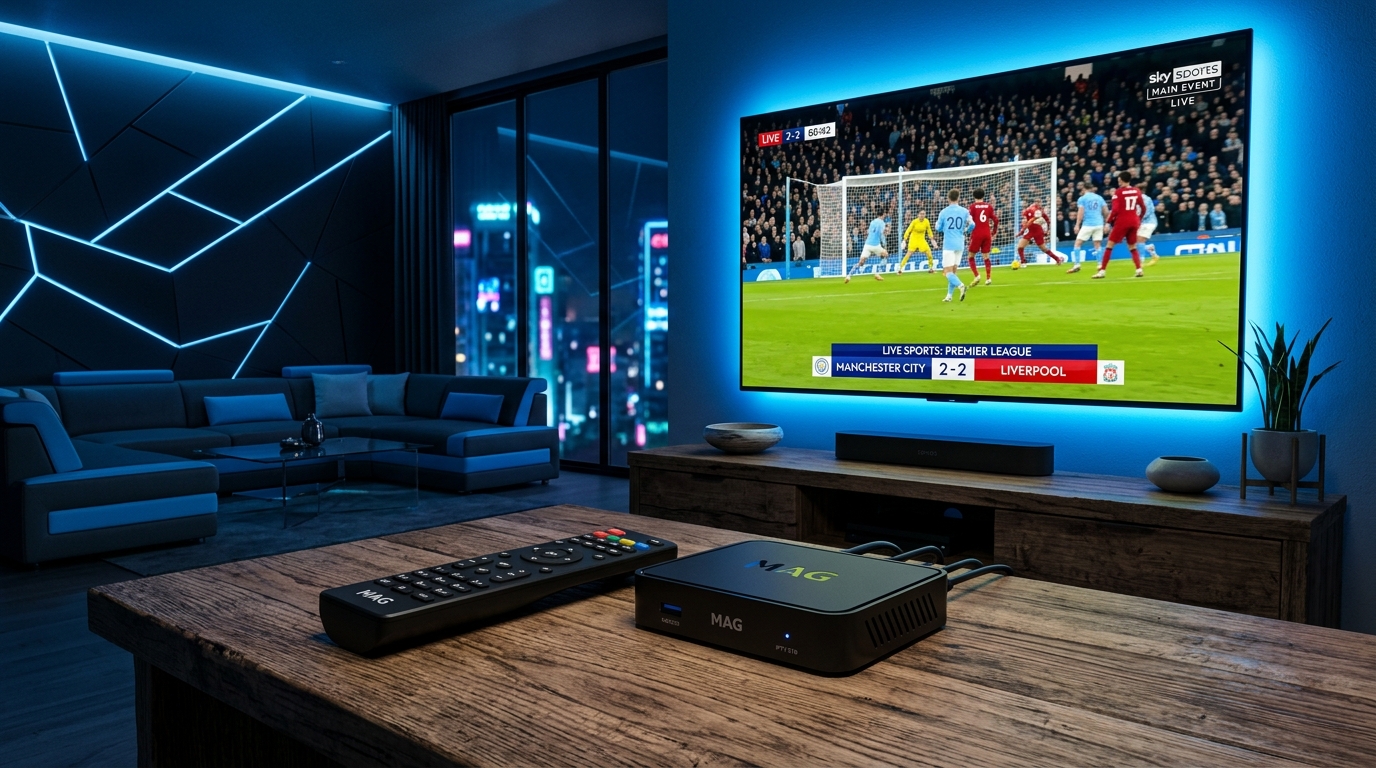
The MAG Box is one of the most reliable IPTV devices ever built — purpose-designed for streaming, rock-solid in performance, and refreshingly simple to configure once you understand how it works.
If you've just got one, or you're thinking about getting one, this is the only guide you need. This covers every MAG Box model (MAG 254, 256, 322, 324, 349, 420, 424, 520, 524, 540w3, 544w3) and walks you through the full setup from unboxing to watching live TV in minutes.
New to IPTV entirely? Start with our complete beginner's guide to IPTV before diving in — it'll make everything below much easier to follow.
What Is a MAG Box and How Is It Different?
A MAG Box is a dedicated IPTV set-top box manufactured by Infomir, a Ukrainian hardware company that has been producing IPTV hardware since 2007. You can find the full range of current MAG Box models on Amazon if you're still shopping for one.
Unlike a Firestick or Android TV Box, a MAG Box does not run Android and has no app store. Instead, MAG Boxes run a Linux-based firmware called Stalker Middleware (also called Ministra). This firmware has one job: connect to your IPTV provider's portal URL and load your channels, EPG, and VOD library automatically. There's nothing to install. No APK files. No sideloading. You simply enter a URL in the settings, restart the box, and your full channel list appears.
This makes the MAG Box the closest thing to a traditional cable box experience — but powered by IPTV.
MAG Box vs Android Box: MAG Boxes are more stable for live TV and require less maintenance, but they can't run third-party apps like TiviMate or IPTV Smarters. If you want app flexibility, an Android Box is better. If you want the most reliable live TV experience, a MAG Box wins. Our Android Box & Smart TV setup guide covers the Android route in full if you want to compare.
Watch Video Tutorial
For a video overview of MAG Box hardware and first-time physical setup, watch Connecting and Setting Up a MAG TV Box (YouTube) — it covers unboxing, HDMI connection, and first boot clearly.
What You Need Before You Start
Before touching the settings menu, make sure you have everything ready:
🔌 Hardware:
- Your MAG Box (any Infomir model)
- HDMI cable (included with most MAG Boxes)
- Power adapter
- Ethernet cable (strongly recommended — see note below)
- Your TV's HDMI input remote
🔑 From SWCSTREAM:
- Your Portal URL — sent to you by email or WhatsApp after subscribing at swc-stream.com/pricing
- Your MAC address registered with SWCSTREAM — this is how the server authenticates your device
Important: Your SWCSTREAM Portal URL looks like
http://yourserver.com:port/c/— it is different from an M3U URL or Xtream Codes credentials. When you subscribe at SWCSTREAM, provide your MAG Box MAC address so the team can register it on the portal server before you set up.
Why Ethernet? Wi-Fi works on newer MAG models with built-in Wi-Fi (MAG 322w, 324w2, 524w3, 540w3, 544w3), but a wired connection eliminates buffering risk during live sports events and large VOD files. Our internet optimization guide covers exactly why this matters.
Step 1: Find Your MAG Box MAC Address
The MAC address is printed on a sticker on the bottom of the device and starts with 00:1A:79 for Infomir devices. You can also find it on screen:
- Power on your MAG Box
- Go to Settings → System Information
- Look for Ethernet MAC address — format:
00:1A:79:XX:XX:XX
Copy this exactly and send it to SWCSTREAM support via our contact page or the email you receive after subscribing. Your portal URL will only work once this MAC address is registered on the server.
Step 2: Connect the MAG Box to Your TV
- Connect the HDMI cable from the MAG Box output to an available HDMI port on your TV
- Connect the Ethernet cable from your router to the MAG Box's Ethernet port
- Connect the power adapter and turn on the MAG Box
- Switch your TV to the correct HDMI input
The MAG Box will display the Infomir loading screen, then boot to the portal interface or a setup screen.
Step 3: Enter Your SWCSTREAM Portal URL
This is the core of the setup. Follow these steps exactly:
- Press the Setup or Settings button on your MAG remote
- Navigate to System Settings
- Select Servers
- Select Portals
- In the Portal 1 Name field, enter:
SWCSTREAM - In the Portal 1 URL field, enter your Portal URL exactly as provided (e.g.
http://yourserver.swc-stream.com:8080/c/) - Press OK and save
💡 Tip: Use the MAG remote's on-screen keyboard carefully — a single wrong character in the URL will prevent the portal from loading. Double-check the URL character by character before saving.
Step 4: Restart the MAG Box
After saving the portal information:
- Press the Exit button to return to the main menu
- Restart your MAG Box by disconnecting and reconnecting the power plug, or select Restart Portal from the menu
The box will reboot, connect to the SWCSTREAM portal server, and automatically load your channel list, EPG, and VOD library.
First load time: 30–90 seconds depending on your internet speed and the size of the channel list.
Visual Guide for Portal Entry
For a detailed visual walkthrough of the portal URL entry and restart process, watch How to Add IPTV Portal on MAG Box (YouTube).
Step 5: Navigate Your SWCSTREAM Content
Once the portal loads, you have full access to:
- 📺 25,000+ Live Channels — sports, news, entertainment, international
- 🎬 100,000+ VOD — movies and series updated daily
- 📅 Full EPG — built-in Electronic Programme Guide showing schedules up to 7 days ahead. Learn more in our complete EPG guide.
- 🔁 Catch-up TV — rewatch content you missed (where available by channel)
Remote Control Navigation:
- OK / Enter: Select a channel or menu item
- Arrow keys: Navigate menus and channel lists
- Back / Exit: Return to previous menu
- Channel +/-: Scroll through live channels
- Menu button: Access channel options (record, info, favourites)
To add channels to favourites: highlight a channel → press Menu → select Add to Favourites.
Setting Up on Specific MAG Models
MAG 254 / MAG 256
Older but still very popular models. The steps above apply exactly. These models use Ethernet only — no built-in Wi-Fi.
MAG 322 / MAG 324w2
Mid-range models with Wi-Fi capability on the 322w and 324w2 variants. For Wi-Fi setup: Settings → Network → Wi-Fi → select your network → enter password before configuring the portal.
MAG 420 / MAG 424w3
Current-generation 4K-capable models. These support 4K HDR content — make sure your SWCSTREAM subscription is active to access 4K streams. Sports fans especially benefit from the 4K output — see our why sports fans are choosing IPTV guide.
MAG 520 / MAG 524w3 / MAG 540w3 / MAG 544w3
Latest generation with the fastest processors, best Wi-Fi (Wi-Fi 5 and Wi-Fi 6 on newer models), and full 4K HDR10+ support. Setup is identical to above.
MAG Box vs Other IPTV Devices: Which Should You Choose?
| Device | Setup Method | App Support | 4K HDR | Best For |
|---|---|---|---|---|
| MAG Box | Portal URL | ❌ No apps | ✅ (420+) | Most stable live TV |
| Firestick 4K | APK / App Store | ✅ TiviMate etc | ✅ | Flexibility + apps |
| Android TV Box | APK / App Store | ✅ All apps | ✅ | Power users |
| Roku | Channel Store | ⚠️ Limited | ✅ | Simple casual use |
| Apple TV | App Store | ✅ GSE, Smarters | ✅ | Premium build |
Explore our complete comparison guides:
Troubleshooting: Common MAG Box IPTV Problems
❌ "Portal Loading Error" or Blank Screen
Causes and fixes:
- Wrong URL: Recheck every character in Portal 1 URL, including
http://, port number, and trailing/c/ - MAC not registered: Contact SWCSTREAM support at swc-stream.com/contact to confirm your MAC address is active
- No internet connection: Check Ethernet cable is fully seated in both MAG Box and router
⚠️ Buffering During Live Channels
Every guide says this because Wi-Fi can fluctuate during live sports. Switch from Wi-Fi to Ethernet, run a speed test, and check our complete buffering fix guide. Also reboot weekly to clear RAM cache.
📅 No EPG / Empty Programme Guide
Some servers take up to 24h after activation for EPG to sync completely. If still empty after 24 hours, contact support.
🔄 Channels Not Updating
Go to Menu → Reload Portal or simply restart the MAG Box to force a fresh server connection.
📶 Wi-Fi Keeps Disconnecting (Newer Models)
On MAG 322w, 524w3, 540w3: go to Settings → Network → Wi-Fi settings and set your connection to Auto-reconnect. Switch to 5 GHz band for better signal.
SWCSTREAM MAG Box Plans
SWCSTREAM fully supports MAG Box via the Stalker Portal system. All plans include 25,000+ live channels, 100,000+ VOD, 4K/FHD streams, and anti-freeze technology.
| Plan | Price | Duration |
|---|---|---|
| Basic | $11.99 | 1 Month |
| Intermediate | $29.99 | 3 Months |
| Advanced | $39.99 | 6 Months |
| Pro (Best Value) | $49.99 | 12 Months |
View all plans and subscribe at swc-stream.com/pricing.
Frequently Asked Questions
Do I need a subscription before I set up my MAG Box?
Yes. You need an active SWCSTREAM subscription and your MAC address registered on the portal server before the URL will load anything. Subscribe first at swc-stream.com/pricing, then provide your MAC address.
Can I use my MAG Box outside my home country?
Yes — IPTV works anywhere with a stable internet connection. If certain channels are geo-restricted, a VPN at router level will unlock them. See our VPN for IPTV guide.
How many MAG Boxes can I use on one subscription?
One connection = one active stream at a time. If you want two MAG Boxes streaming simultaneously, you need a 2-connection plan. See our IPTV multi-device guide.
What's the difference between M3U and Portal URL on a MAG Box?
MAG Boxes use the Portal URL (Stalker Middleware) system — not M3U. Check our M3U vs Xtream Codes guide to learn more about stream formats.
Is IPTV on a MAG Box legal?
IPTV technology and MAG Boxes are completely legal. What matters is using a legitimate provider. Read our IPTV legality guide for full details.
Conclusion
Setting up IPTV on a MAG Box is one of the most straightforward streaming setups available — no app stores, no sideloading, no complicated configuration. Just a portal URL, a MAC address, and a restart. In under five minutes, you go from an empty box to a complete IPTV experience with tens of thousands of channels, a full EPG, and a massive VOD library.
Ready to get started? Subscribe to SWCSTREAM and have your MAG Box live in minutes. 🚀
